Inventory List
The Inventory list is a database of all your shipments in MineHub. This guide explains how you can:
- Modify Inventory Columns
- Filter and Sort the Inventory Columns
- Export Inventory information as a spreadsheet
Navigation
From the headers at the top of the page, navigate to Inventory > All accounts
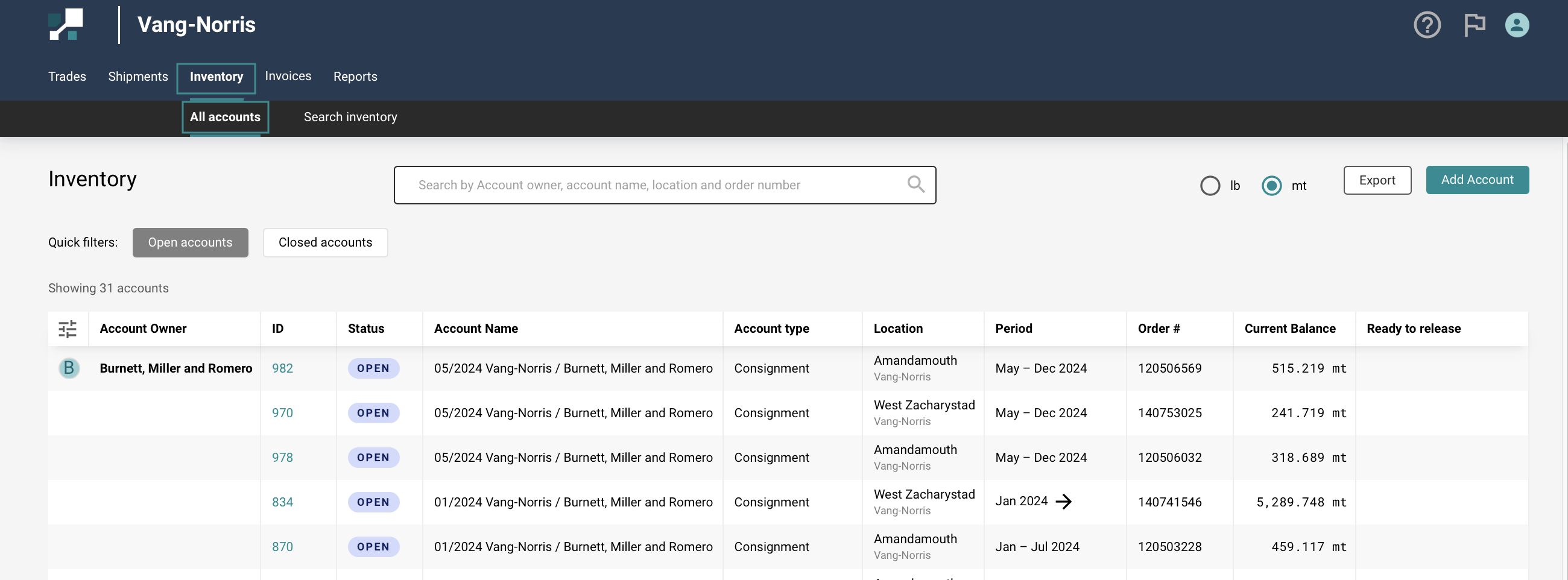
Search box can be easily search by account owner, account name, location and order number
Quick filters can easier filter the Open & Close accounts.

Modifying Inventory Columns
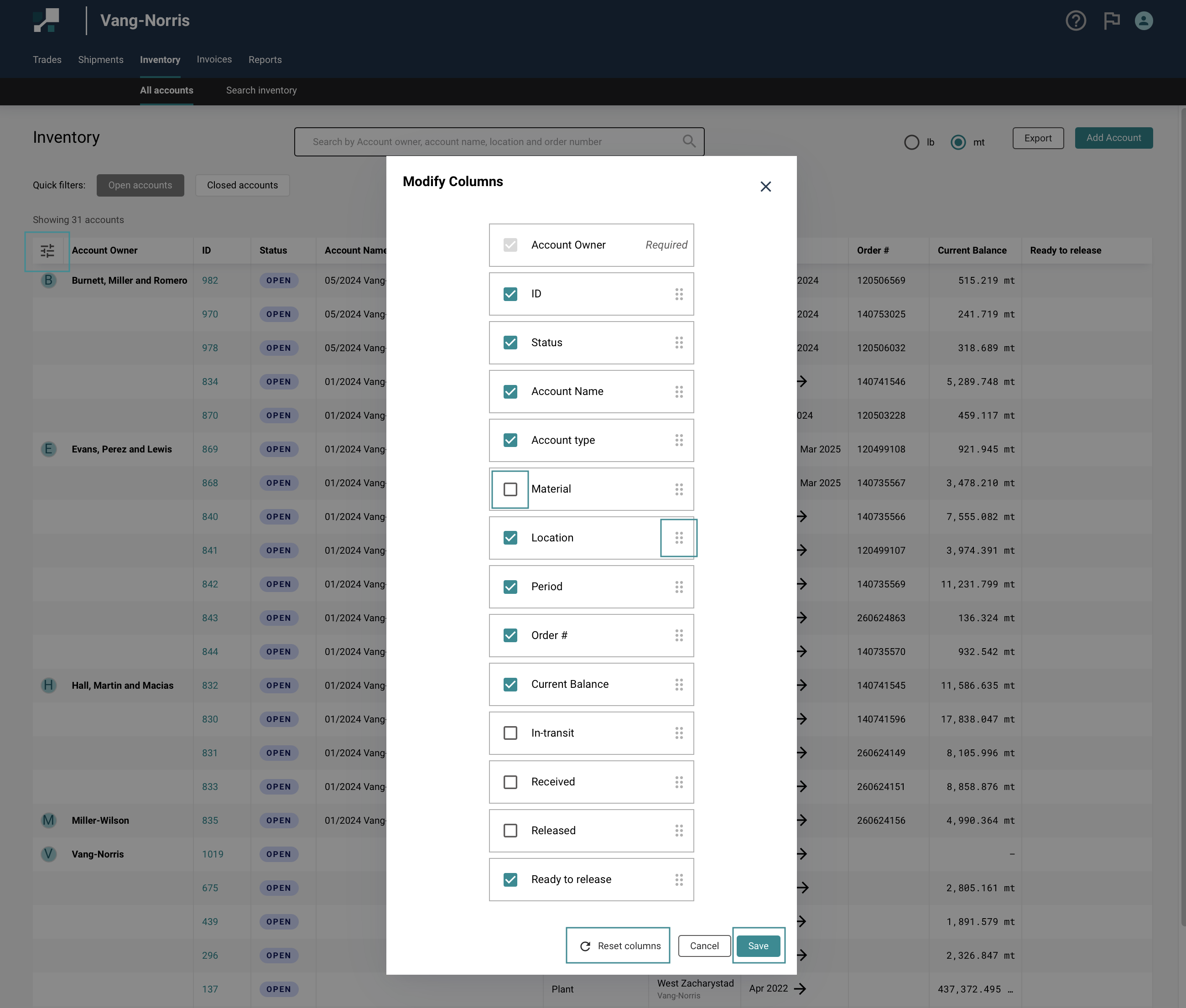
User can Personalize & Modify the Inventory columns The columns shown on the Inventory all account list can be customized according to your requirements, meaning you can design your view to best suit your workflows.
To the top left of the page, there is a Modify Column button
In the form that appears, Select/ Deselect the ✅ columns you want to see.
It is also possible to reorder the columns using the 6 dots icons to the right-hand side, according to how you prefer to see the information.
Just click on Reset columns to reset to the default layout
Click on Save once you are done.
Filtering and Sorting the Inventory Columns
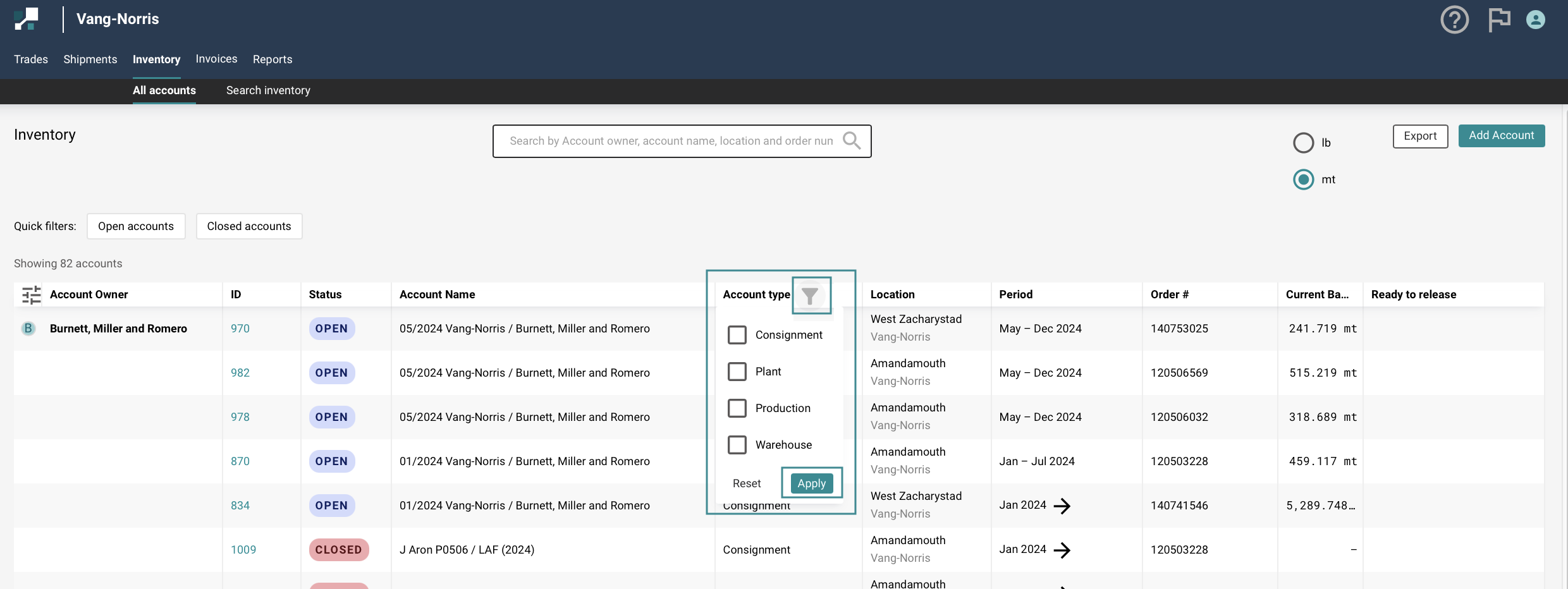
Columns can be sorted (in both ascending and descending order) and filtered to show only certain information.
To apply a filter, hover over the column header, and select the filter icon that appears.
Select/ Deselect the ✅ checkboxes, according to the information you want to see.
Hit Apply.
Exporting the Inventory List
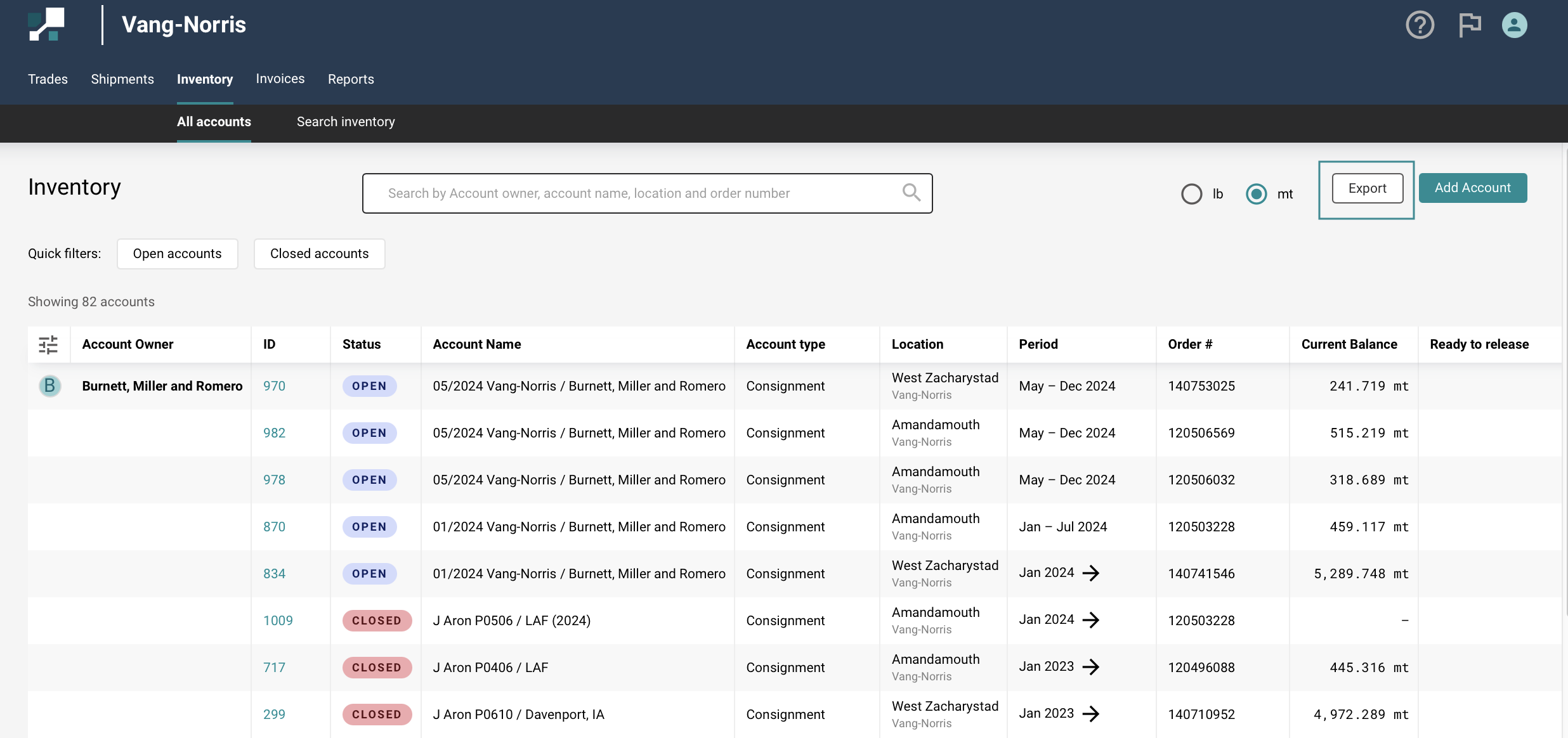
After filtering & sorting, data can be exported from the Inventory list and downloaded to your machine in the form of a CSV file. You can then open this file in Excel and further analyze or manipulate the data.
Simply hit the Export button in the top right of the page.
This will download a file showing exactly the information you have on the screen, including any filters and sorting you’ve applied.