Releasing Inventory
This guide explains how you can:
- Find the Relevant Inventory Account
- Find the Relevant Quota
- Find Consumed Loads
- Build Releases
- Managing Releases
Finding the Inventory Account
- From the headers at the top of the page, navigate to Inventory > All accounts
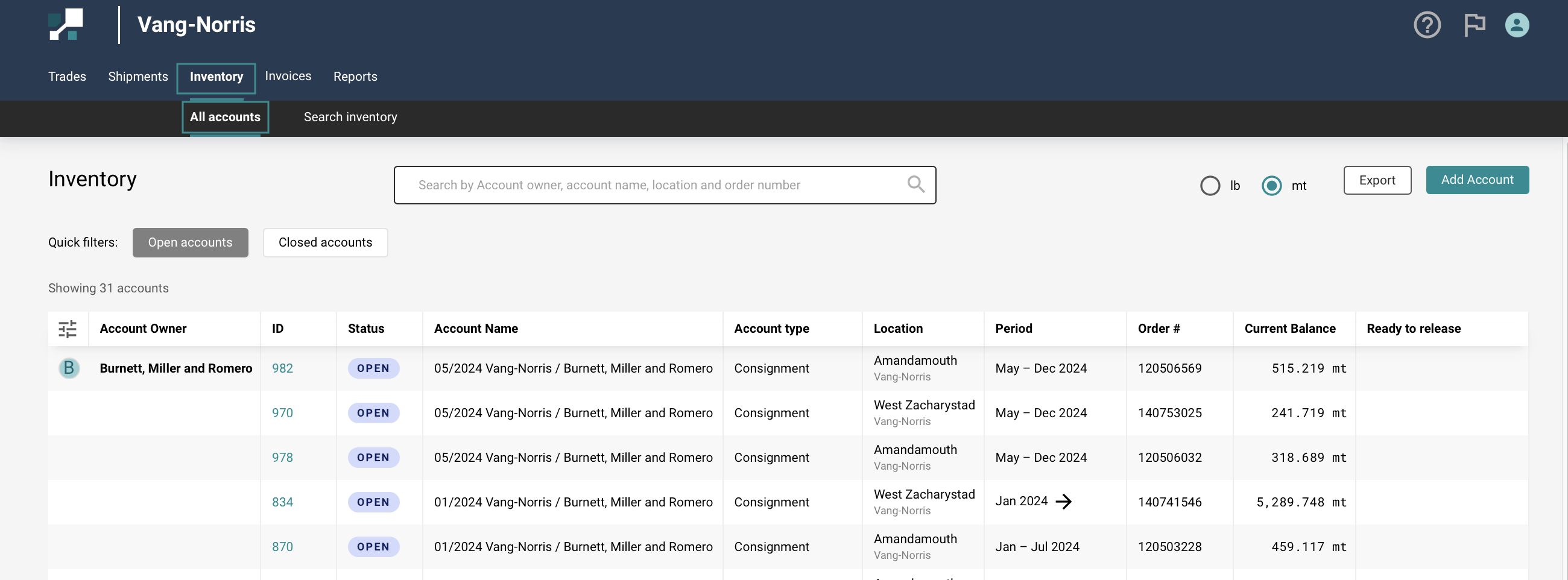
- Search box can be easily search by account owner, account name, location and order number
- Quick filters can easier filter the Open & Close accounts.

- Use the Column filters to narrow down the results
- Check the Order # (order number)
- Click anywhere on the row to go into the inventory account
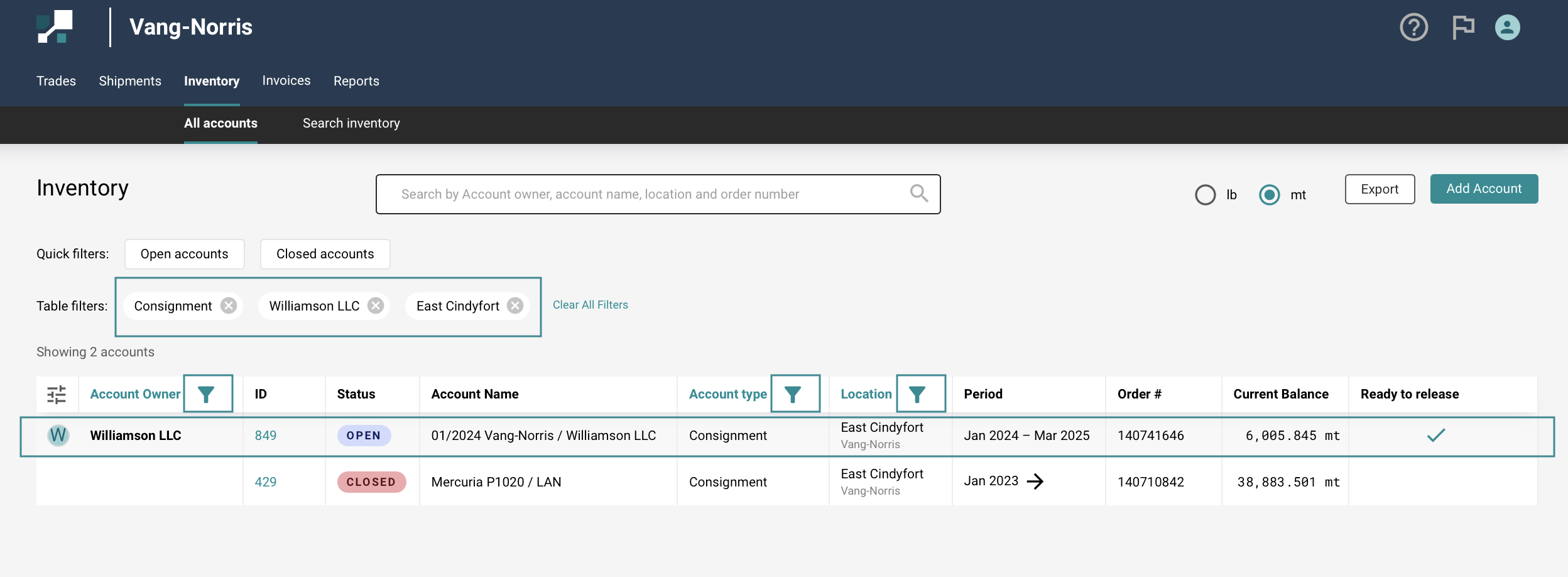
For more details on the Inventory Filtering in MineHub, check out - Inventory List user guide.
Find the Quota
From the Inventory account:
- Select the Quotas & orders tab. This shows a breakdown of all the order and line items on the trade linked to this account
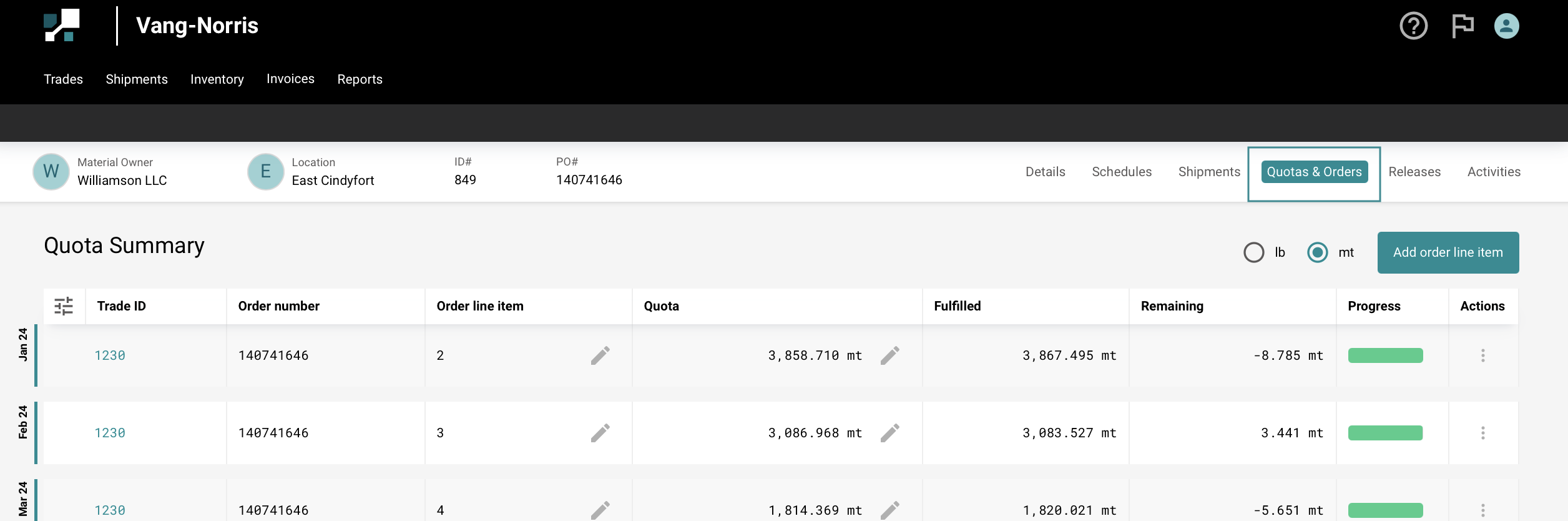
- Use the Progress bar to determine which line item to release to
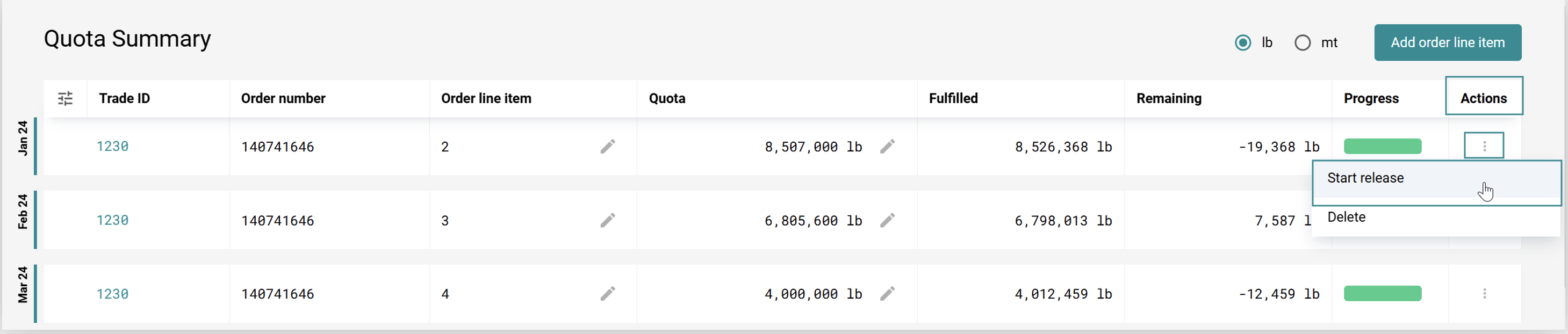
- Click on the 3 dots menu, and select Start release
Creating /Editing Line Items
- You can edit a line item number or quota amount by selecting the pencil icon.
- To create a new line item (for example, for a new spot order), select the Add order line item button in the top right.

Find Consumed Loads**
- You should now be on the Activities tab. This page shows you a full history of all shipments that have passed through this account.
- Filter the Status column to show Ready for release.
- This shows all loads that have been consumed, and are ready to be released to trade quotas.
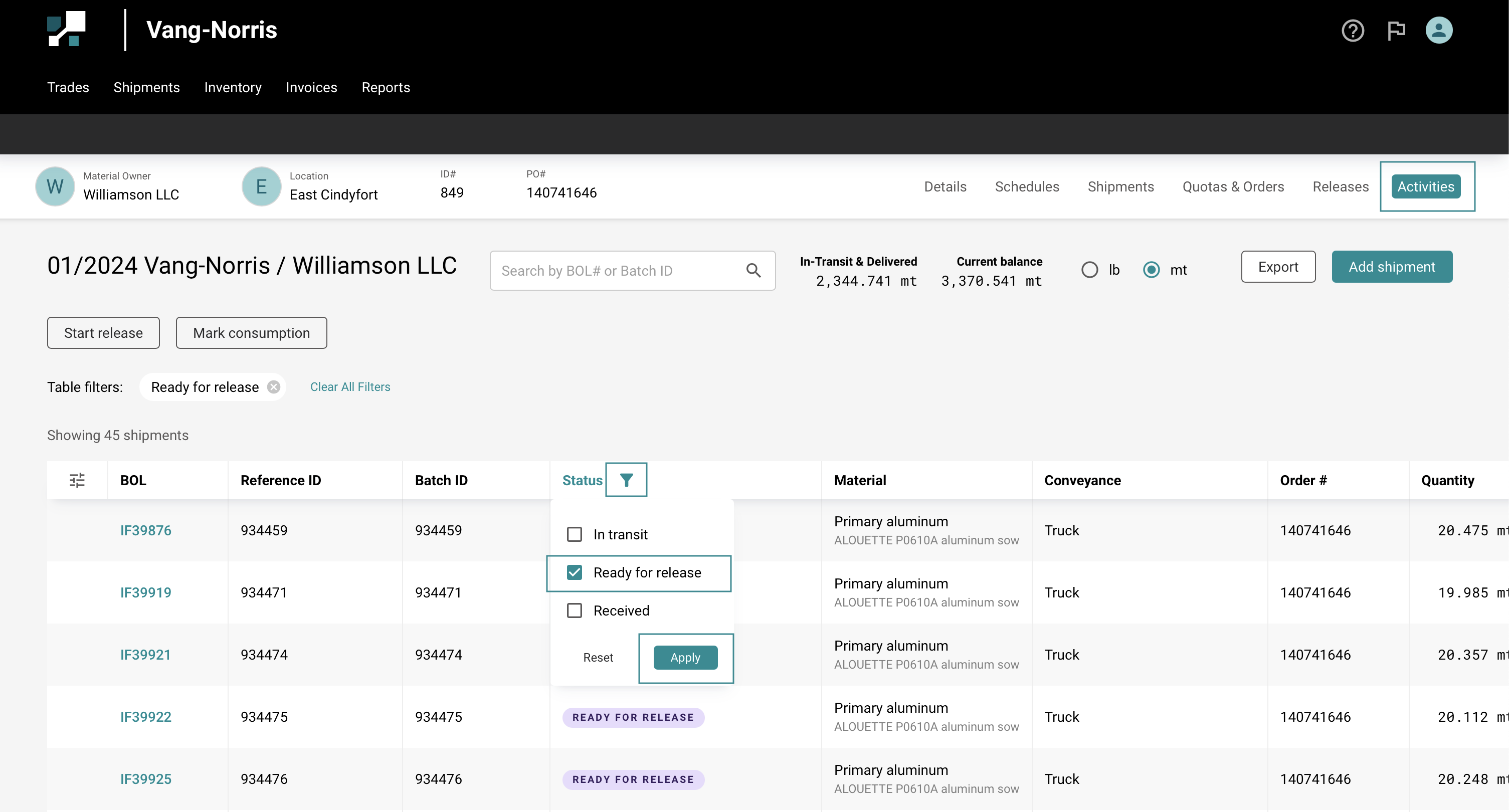
For more details on the Modifying Inventory Columns in MineHub, check out - Inventory List user guide.
Build your Releases
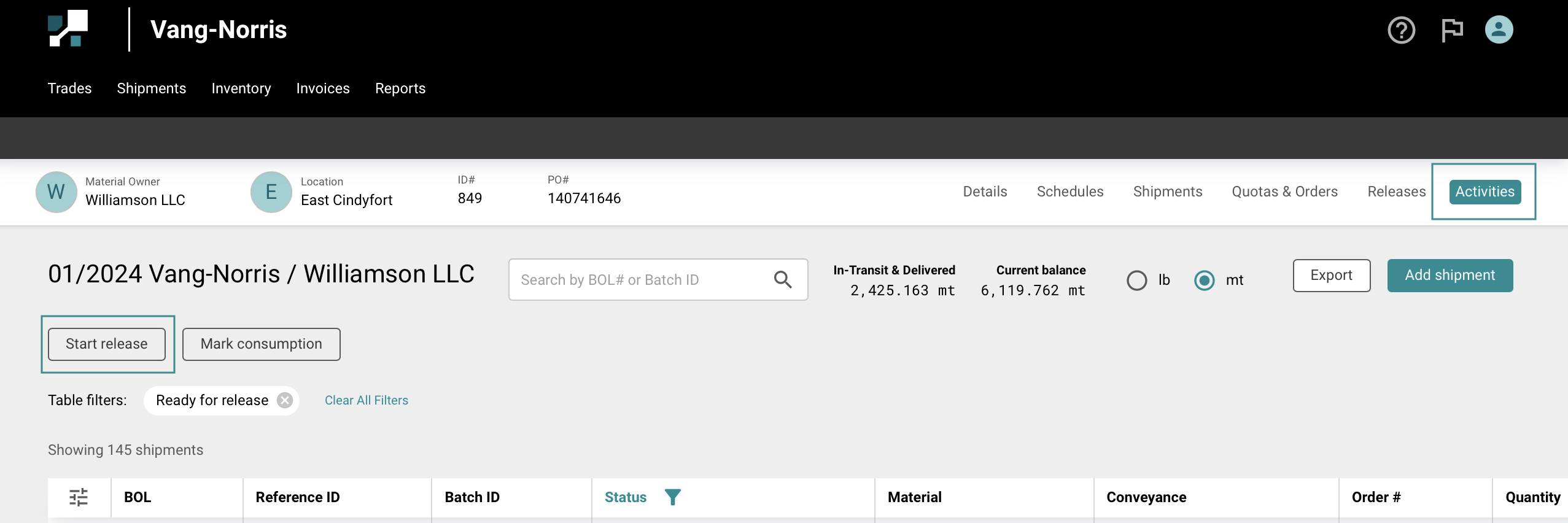
Click on Start Release
Use the + icon to add loads to your release.
To remove a shipment, use Trash can icon
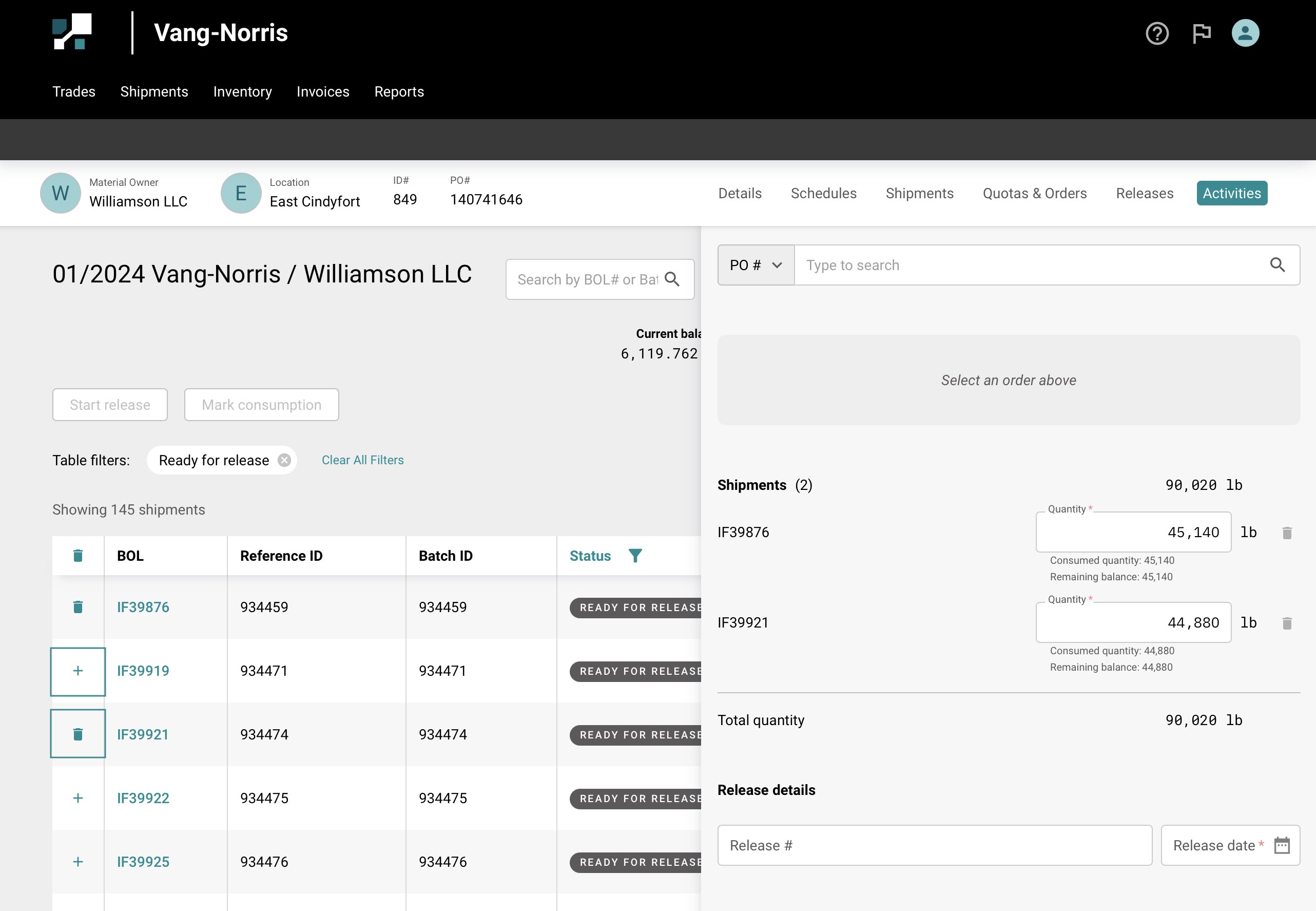
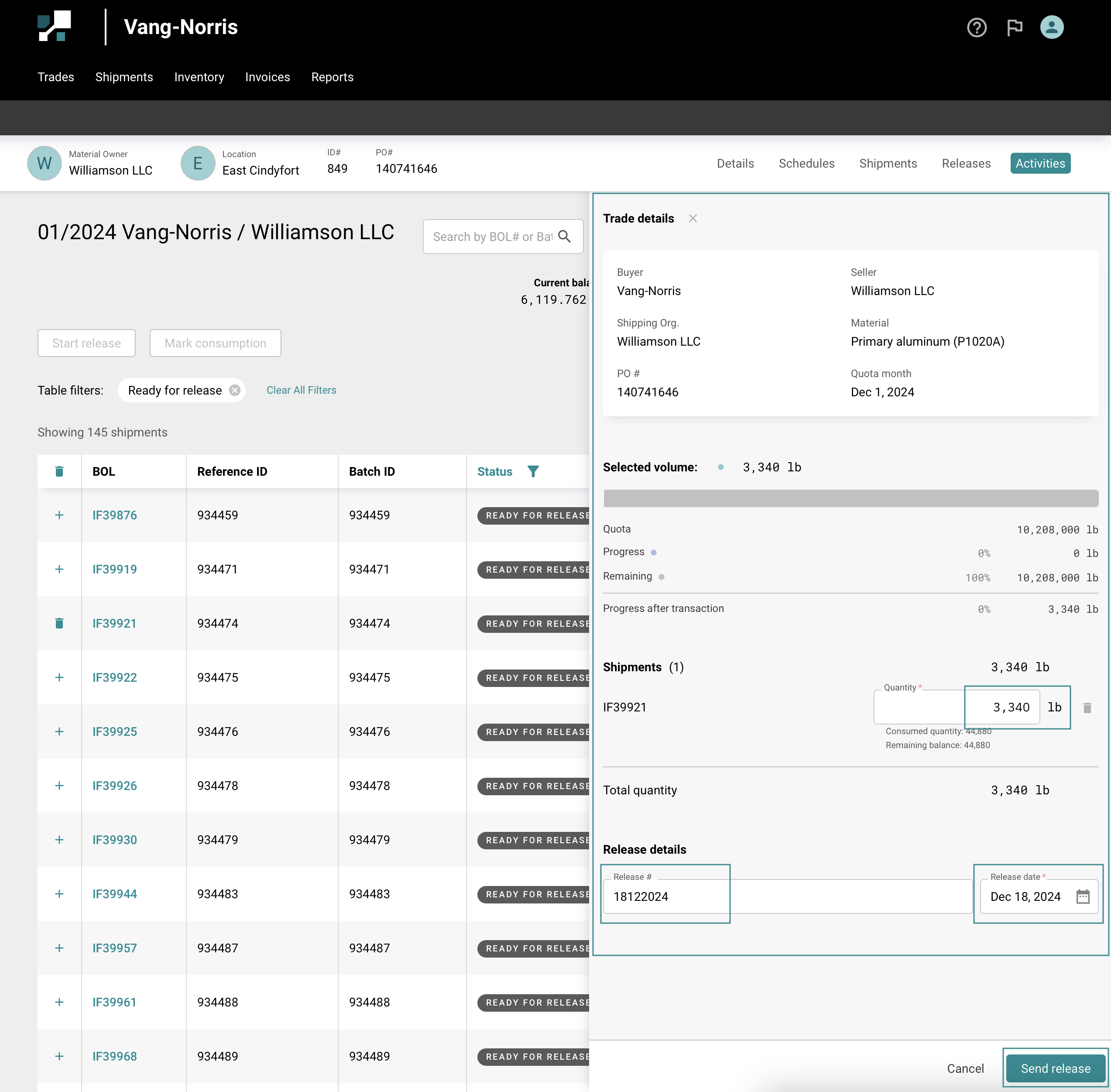
As you add loads, track progress against the quota from the release pane to the right
To partially release a load, manually edit the volume in the Quantity field
Select a Release date, and enter a Release # (optional) -Once all is done, click Send release
Managing Releases
Viewing Releases
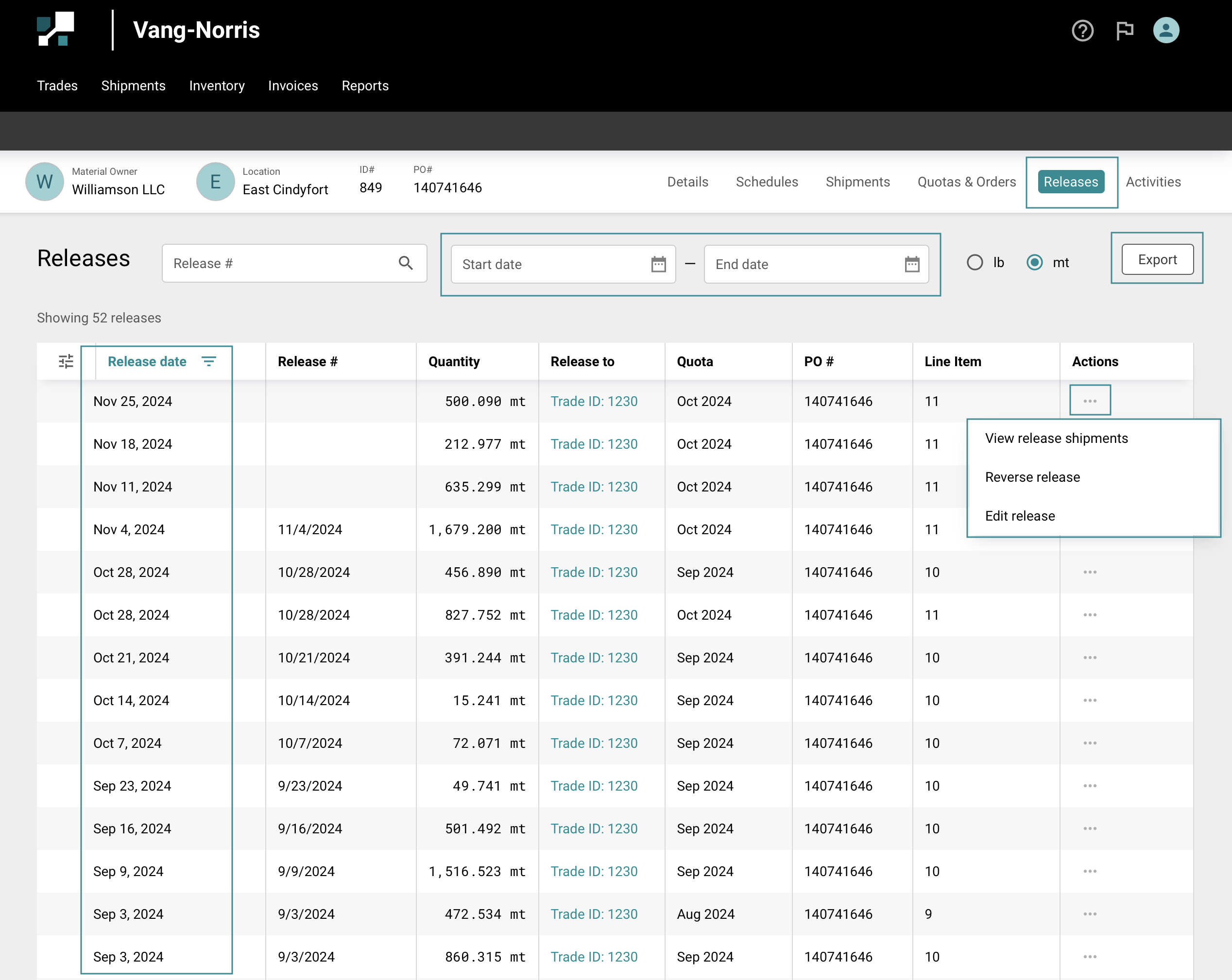
From the Releases tab, you can:
- view a full history of releases
- Filter by Release date (Start date - End date)
- Export your data to Excel
Edit or Reverse a release
- Select the three dots icon in the Actions column
- From here, you can Reverse a release, Edit release , or View the shipments associated with it.
For more details on the Inventory in MineHub, check out - Inventory List user guide.